To sell a Gift Voucher, login a clerk and press the Gift Voucher Sale button.
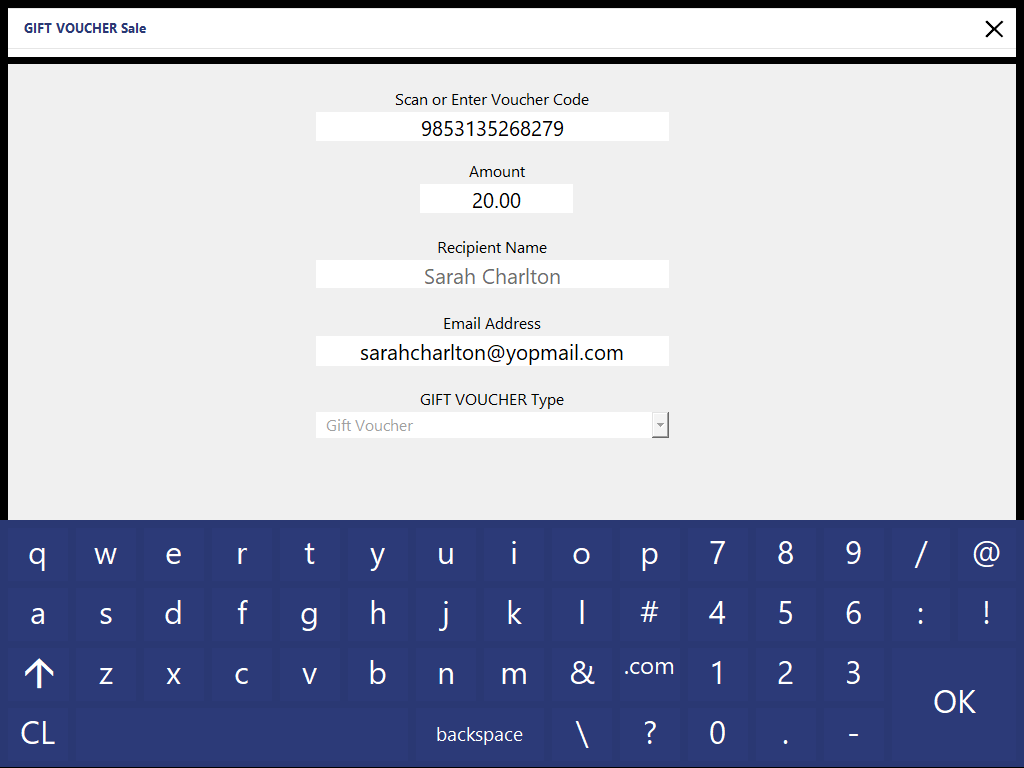
A new screen will open showing you the details of the Gift Voucher.
You have the option to scan or manually enter a Voucher Code, or one can be provided for you.
Enter the amount in Dollars ($) you want to issue the Voucher for.
If a Customer has been added to the Sale when using the GIFT VOUCHER Sale function, the Recipient Name will be pre-filled using the Customer Name.
It is not required, but you can enter the Customers Name, either the purchaser or the redeemer.
As you type, any customers from your database that match the letters entered will be displayed so you can select them.
If you intend to allow your Customers to purchase Gift Vouchers for other Customers, we recommend disabling the option "Gift Vouchers use Customer Code" in Setup > Global Options > Credit Notes/Gift Vouchers.
This will ensure that the Gift Voucher Codes which Idealpos generates for the Gift Voucher are unique and not associated with the Customer purchasing the Gift Voucher.
This is especially important if your Customers intend to purchase Gift Vouchers for numerous recipients.
Enter an email address to send the voucher in .PDF format.
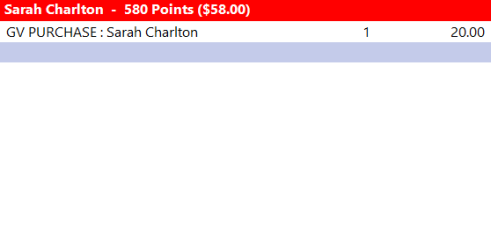
Press OK to enter the voucher into the sale window.
If you selected a Customer from your database, their name will display at the top of the screen.
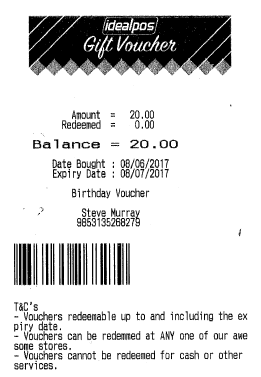
The Gift Voucher can then be printed to the default receipt printer.
If "Voucher details shown on Receipts" is enabled in Setup > Global Options > Credit Notes/Gift Vouchers, the Sale Receipt will also show the Gift Voucher details on the bottom, which will include the Gift Voucher Code, Name and the Remaining Value.
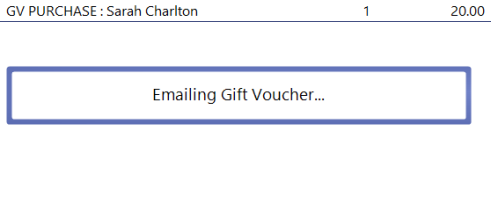
If the voucher is being emailed to the customer, it will happen automatically when the sale is being finalised.
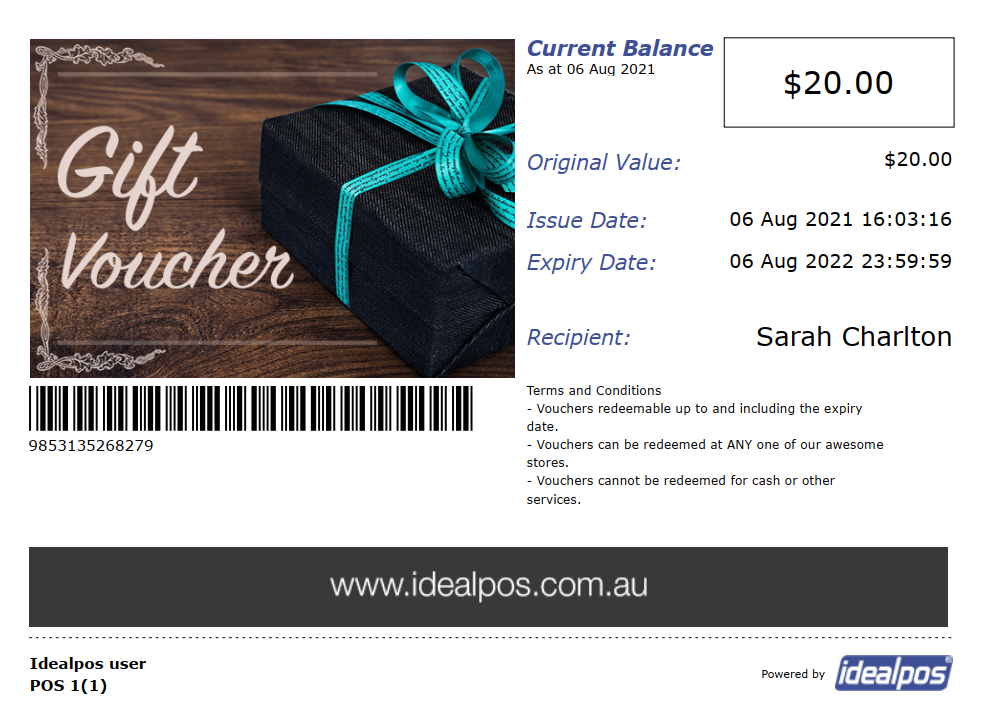
The Gift Voucher will contain the Trading Name of the issuing store and the POS Terminal number which issued the Gift Voucher.
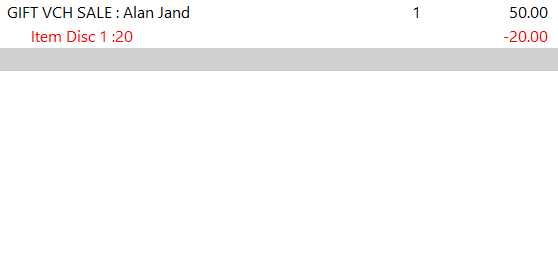
When selling a Gift Voucher, you may wish to offer a certain value to the Customer while only expecting them to pay for part of that value.
Being able to perform an Item Discount allows you to do this.
Enter a Gift Voucher with a value into the POS Screen.
Enter the Item Discount value you want to use against it.